

Harmonogram zápisů
Zápisy pro všechny ročníky, kromě nastupujících prvních ročníků, probíhají pro akademický rok 2023/2024 elektronicky přes SIS v období od 17. 7. do 20. 9. 2023.
Studenti se všemi splněnými studijními povinnostmi provedou elektronický zápis.
Elektronický zápis zahrnuje kontrolu splněných studijních povinností z aktuálního akademického roku a elektronické odeslání žádosti o kontrolu pro postup do dalšího úseku studia.
Studenti si pouze v SISu zkontrolují své zapsané a splněné studijní povinnosti a požádají o kontrolu pro postup do dalšího úseku studia. Podáním této žádosti studenti stvrzují, že všechny osobní údaje studenta i údaje o splněných studijních povinnostech jsou pravdivé a v pořádku.
Studenti, kteří k datu zápisu pro daný ročník nemají splněné všechny studijní povinnosti, se musí dostavit na studijní oddělení k zápisu osobně, dle rozpisu termínů zápisů pro jednotlivé ročníky.
Aktualizace osobních údajů
Povinností je průběžně aktualizovat osobní údaje ve Studijním informačním systému. Před zápisem si prosím zkontrolujte a opravte především tyto údaje:
- číslo mobilního telefonu (v kolonce „mobil“),
- číslo bankovního účtu,
- e-mail,
- rodinný stav,
- doručovací adresa (pouze v případě, že je jiná než trvalá).
Web adresa
Webová adresa Studijního informačního systému (SIS):
https://is.cuni.cz/studium
Úvodní stránka:
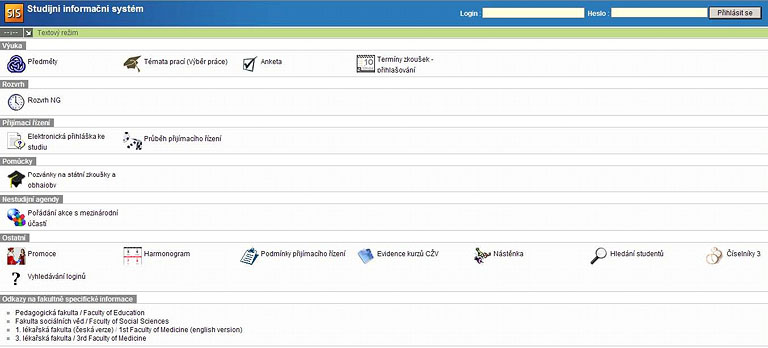
Přihlášení

Zde zadejte login a heslo. Vaše heslo si inicializujete nebo obnovte na stránce v CAS. Na této stránce také naleznete veškerou nápovědu týkající se nalezení vašeho uživatelského jména nebo toho, jak postupovat v případě ztráty hesla či pokud chcete heslo změnit.
Po vyplnění loginu a hesla stiskněte tlačítko „Přihlásit se“.
V případě, že student studuje dva a více oborů, používá k přihlašování do systému zápisu jen jedno uživatelské jméno a dále si vybere obor, který studuje.
Po přihlášení uvidíte v takovém případě seznam oborů, které studujete. Teprve po zvolení oboru budete moci pokračovat v zápisu standardním způsobem.
Objeví se následující obrazovka:
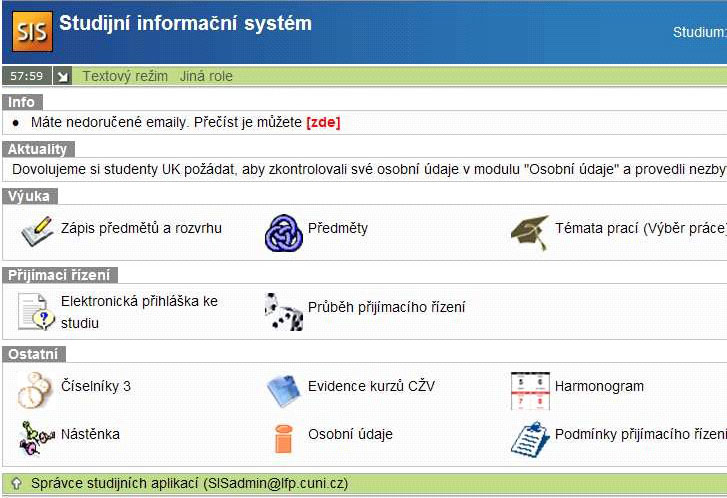 Problémy s přihlášením oznamujte správci studijních aplikací.
Čas
Během práce ve Studijním informačním systému vám běží čas. Vlevo nahoře:
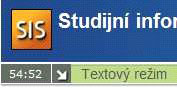 Je to z důvodu bezpečnosti. Pokud odejdete od počítače a zapomenete se odhlásit ze systému – po šedesáti minutách nebude možno dělat v systému žádné změny.
Jak provést kontrolu
Na Úvodní stránce klikněte na odkaz „Výsledky zkoušek prohlížení“.

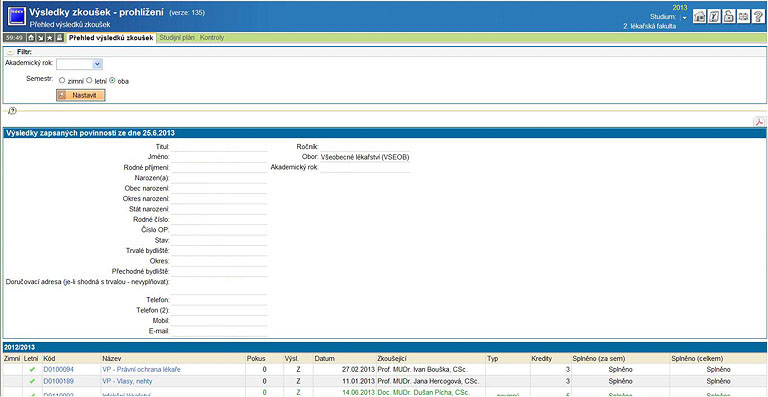
Kontrola splněných zápočtů a zkoušek
Před zápisem do dalšího ročníku musíte mít splněny povinnosti ročníku aktuálního. Projděte si seznam předmětů, které máte zapsané v právě probíhajícím roce, a zkontrolujte na začátku řádků, zda máte předměty splněné. Pokud byl předmět splněn, je odškrtnut zeleně, pokud ne, tak je na začátku řádky uveden červený křížek.
Pokud zjistíte, že některý váš zápočet nebo zkouška, který jste splnili, není v systému zapsán, musíte kontaktovat e-mailem sekretariát kliniky nebo ústavu, který předmět vyučuje.
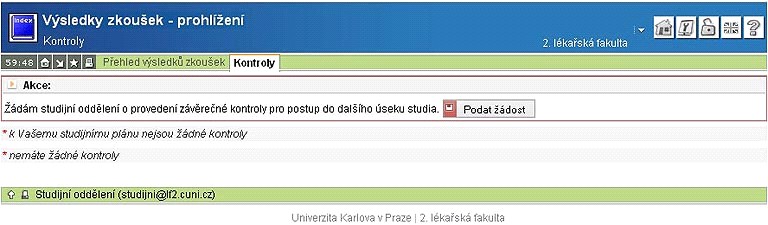
Až zkontrolujete všechny své povinnosti a jsou-li v systému vedeny jako splněné, zvolte z menu položku „kontroly“ a klikněte na tlačítko „Podat žádost“ (Žádám studijní oddělení o provedení závěrečné kontroly pro postup do dalšího úseku studia). Viz obr.:
Kontrola pravdivosti a aktuálnosti osobních údajů
Metodický pokyn pro studenty pro zapisování a absolvování volitelných předmětů mezi fakultami UK